Browser extension
penciled for the browser brings penciled to every website you read. Select text to highlight it or add a note, and your highlights come back when you return to the page.
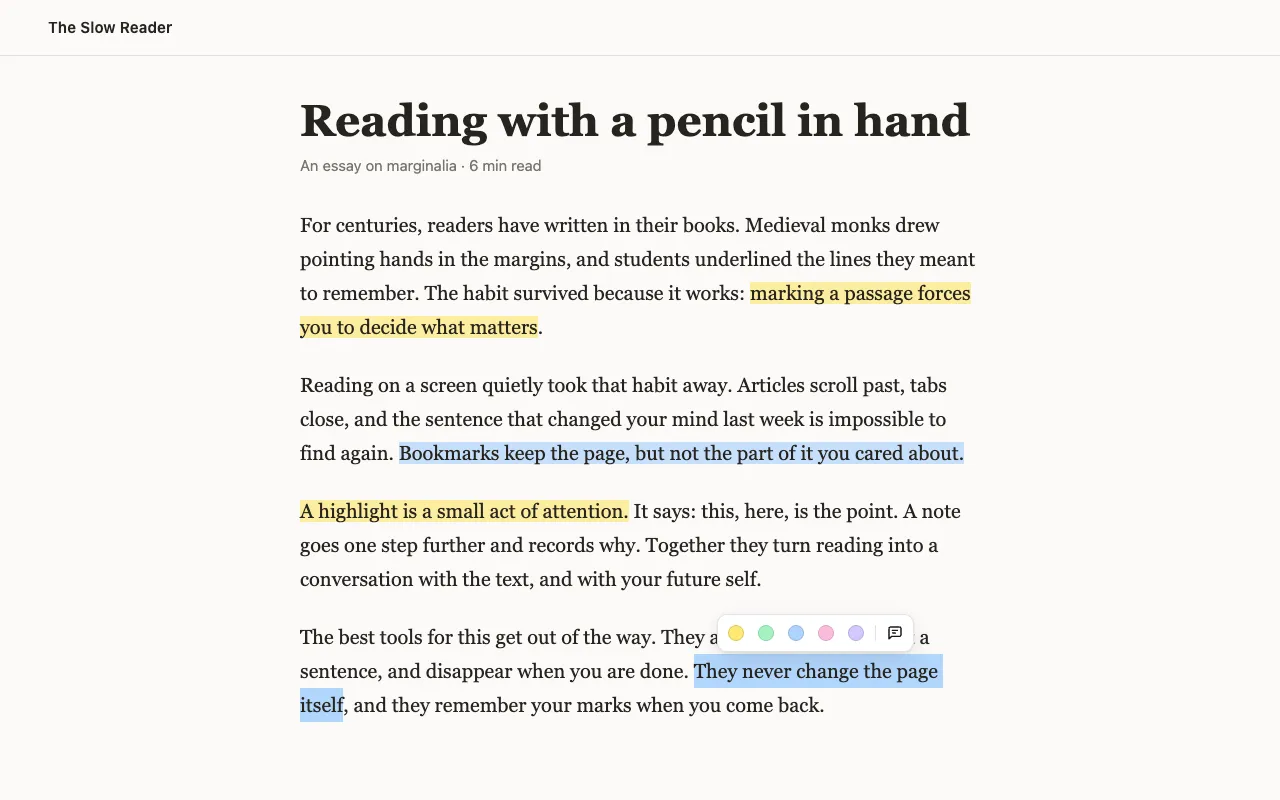
It’s free and open source, with no account to create. Your highlights are saved in your browser and never sent anywhere: see the privacy statement.
Install
Section titled “Install”penciled is on its way to the Chrome Web Store, Edge Add-ons and Firefox Add-ons. Until it’s listed, you can install it in Chrome or Edge from GitHub:
- Download
penciled-<version>-chrome.zip(or-edge.zip) from the latest extension release, and unzip it. - Open
chrome://extensions(oredge://extensions) and turn on Developer mode. - Click Load unpacked and choose the unzipped folder.
It works in Chrome, Edge and other Chromium browsers, version 123 or later, and in Firefox 140 or later, including Firefox-based browsers like Zen. Firefox only installs extensions signed by Mozilla, so for Firefox, wait for the Firefox Add-ons listing.
Using it
Section titled “Using it”- Highlight: select text and pick a color in the toolbar. Click a highlight to change its color, add a note or remove it.
- This page’s highlights: click penciled’s toolbar button to list them. Click one to scroll to it. The same menu turns penciled off for the whole site.
- All your notes: the notes page lists every highlight from every site, with search. Open it from the toolbar button’s All notes link.
- Keyboard: Alt+A moves into the toolbar, Alt+] and Alt+[ move between highlights, and Alt+Shift+H hides or shows highlights on a tab. On a Mac, Alt is ⌥.
- Settings: choose the toolbar’s theme, turn off opening the toolbar on every selection, edit or add colors, and see the sites penciled is off on.
Keep a backup
Section titled “Keep a backup”Highlights are stored only in the browser you made them in, and uninstalling penciled deletes them. To keep a copy, or to move them to another browser, use Export a backup on the notes page, then Import a backup in the other browser. Export as Markdown gives you a readable copy for your notes app.
What it can’t do yet
Section titled “What it can’t do yet”- Highlight text inside frames, such as embedded posts, or in PDFs.
- Highlight inside text fields and other editable areas, which it leaves alone.
- Sync highlights between computers. Your settings do sync, through your browser account.
When a page changes so much that penciled can’t be sure where a highlight belongs, it doesn’t guess: the highlight is listed as Couldn’t find this on the page, so you can still read or delete it. See Anchoring for how this works.
Found a bug or missing something? Open an issue.